


In the fast-paced digital world we inhabit, laptops have become indispensable tools for work, education, entertainment, and staying connected. We rely on them for virtually every aspect of our lives. But what happens when this crucial piece of technology starts to falter? While some minor glitches can be resolved with a quick restart or a software tweak, there comes a point when your laptop’s issues demand the expertise of a professional. Ignoring these signs can lead to more significant damage, data loss, or even the premature demise of your device.

This comprehensive guide will delve into the top seven signs that indicate your laptop is crying out for professional repair. Understanding these indicators can save you time, money, and a great deal of frustration in the long run.
1. Persistent and Unexplained Performance Degradation
One of the most frustrating and common issues laptop users face is a noticeable and consistent slowdown in performance. This isn’t just about your laptop taking a few extra seconds to boot up; it’s about a pervasive sluggishness that impacts everything you do.
What it looks like:
Slow boot-up and shut-down times: Your laptop takes an eternity to start up or power down, even after you’ve closed all application’s.
Applications taking forever to load: Programs that once opened instantly now crawl to a halt, or even freeze before becoming responsive.
Frequent freezing and crashing: Your laptop becomes unresponsive, requiring a hard reset, or applications unexpectedly close without warning.
Laggy multitasking: Switching between tabs or applications becomes a frustrating exercise in patience, with noticeable delays and stuttering.
General unresponsiveness: Even simple actions like opening folders or navigating the desktop feel unusually slow and unresponsive.
Why it’s a concern:
While a certain degree of slowdown can be attributed to an overloaded hard drive or too many background processes, persistent and significant performance degradation often points to more serious underlying issues. This could include:
Hard drive failure: The hard drive, where all your data is stored, might be failing. This is a critical issue that can lead to complete data loss if not addressed promptly.
RAM (Random Access Memory) issues: Insufficient or faulty RAM can severely bottleneck your laptop’s performance, as it struggles to hold enough data for active applications.
CPU (Central Processing Unit) overheating: If your CPU isn’t being adequately cooled, it will throttle its performance to prevent damage, leading to noticeable slowdowns.
Malware or virus infection: Malicious software can consume significant system resources, leading to a drastic drop in performance and potentially compromising your data.
Corrupted operating system files: Essential system files can become damaged, leading to instability and poor performance.
When to call a professional:
If you’ve tried basic troubleshooting steps like restarting your laptop, clearing temporary files, running a virus scan, and updating drivers, and the performance issues persist, it’s time to seek professional help. A technician can diagnose the root cause, whether it’s a failing component, a deep-seated malware infection, or a corrupted OS.
2. Unusual Noises Coming from Your Laptop
Laptops, by their nature, produce some operational sounds, primarily from the cooling fans. However, any new, unusual, or excessively loud noises are a significant red flag that should not be ignored.
What it looks like:
Loud grinding or clicking sounds: These often emanate from the hard drive, indicating a potential mechanical failure. This is a critical sign that data loss is imminent.
Excessively loud fan noise, even under light load: While fans will spin faster when the laptop is under heavy use, constant roaring or whining, even when just Browse the internet, suggests a cooling problem.
Whirring or buzzing sounds: These can indicate a failing fan, a loose component, or even an issue with the power supply.
Repetitive beeping codes: Some laptops use a series of beeps during startup to signal specific hardware errors. These “beep codes” are manufacturer-specific and often point to RAM, CPU, or graphics card issues.
Why it’s a concern:
Unusual noises are almost always indicative of a physical hardware problem.
Hard drive failure: Grinding or clicking is the death knell for a mechanical hard drive. Continuing to use the laptop can exacerbate the damage and make data recovery more difficult or impossible.
Fan failure or obstruction: A struggling fan means your laptop isn’t cooling properly. This can lead to overheating of critical components like the CPU and GPU, which can cause performance throttling, instability, and permanent damage over time.
Loose components: Vibrations can cause internal components to come loose, leading to buzzing or rattling. While sometimes harmless, it can also indicate a more serious issue or lead to short circuits if not addressed.
When to call a professional:
Any new, loud, or persistent unusual noise should prompt immediate professional attention. Especially with grinding or clicking sounds from the hard drive, shut down your laptop immediately to prevent further data loss and seek expert help for data recovery and repair.
3. Overheating – Even with Minimal Use
A laptop that consistently runs hot, even when performing basic tasks, is a serious concern. While some warmth is normal, excessive heat can cause irreversible damage to internal components.
What it looks like:
The laptop feels extremely hot to the touch: Particularly on the underside, near the vents, or around the keyboard.
Fans constantly running at high speed: Even when the laptop isn’t performing resource-intensive tasks.
Performance throttling: The laptop slows down significantly or even shuts down unexpectedly to prevent damage from excessive heat.
Burning smell: A faint burning smell indicates that components are literally overheating and could be on the verge of failure.
Why it’s a concern:
Overheating is a silent killer for laptops. Prolonged exposure to high temperatures can:
Degrade internal components: Heat can shorten the lifespan of the CPU, GPU, RAM, and motherboard.
Cause solder joints to crack: Leading to intermittent connectivity issues or complete component failure.
Lead to data corruption: Hard drives are sensitive to heat and can become corrupted.
Unexpected shutdowns: As a safety mechanism, laptops will often shut down abruptly to prevent thermal damage, leading to potential data loss if unsaved work is open.
Common causes of overheating:
Dust and debris accumulation: Over time, dust, pet hair, and lint can clog the vents and block the airflow to the fans and heatsinks, preventing efficient cooling.
Failing thermal paste: The thermal paste between the CPU/GPU and the heatsink can dry out or degrade, reducing heat transfer efficiency.
Malfunctioning cooling fan(s): A fan that isn’t spinning at full speed or has completely failed cannot dissipate heat effectively.
Resource-intensive software/malware: Programs that constantly consume high CPU or GPU resources can generate excessive heat.
When to call a professional:
If your laptop consistently overheats despite using it on a hard, flat surface and ensuring good ventilation, it’s time for professional intervention. A technician can clean out accumulated dust, replace thermal paste, or repair/replace faulty cooling fans. This proactive measure can significantly extend your laptop’s lifespan.
4. Display Problems – From Flickering to No Image
Your laptop’s display is your primary interface, and any issues with it can severely hinder usability. Display problems can range from minor annoyances to a complete loss of image.
What it looks like:
Flickering screen: The display intermittently brightens, dims, or shows distorted images.
Lines or discoloration on the screen: Vertical or horizontal lines, strange color patches, or pixelated areas appear on the display.
Dim or dark screen: The screen appears very dark, even with brightness settings maximized, or only certain parts of the screen are illuminated.
No image on the screen: The laptop powers on, but the screen remains black, or only shows the backlight.
Cracked or shattered screen: Physical damage to the LCD panel.

Why it’s a concern:
Display issues can stem from various sources, some more serious than others:
Loose or damaged display cable: The cable connecting the screen to the motherboard can become loose or damaged due to wear and tear or physical impact.
Failing backlight (for LCDs): The component responsible for illuminating the screen can malfunction.
Faulty graphics card (GPU): The integrated or dedicated graphics card responsible for rendering images might be failing. This is a more serious and often costlier repair.
Physical damage to the LCD panel: A drop or impact can crack the screen, requiring replacement.
Motherboard issues: In some rare cases, display problems can be indicative of a deeper issue with the motherboard itself.
When to call a professional:
Unless it’s a simple case of adjusting brightness settings or a loose external monitor cable, display problems almost always require professional attention. Diagnosing whether the issue is the cable, the screen itself, or the graphics card requires specialized tools and expertise. Replacing a laptop screen can be complex and delicate, best left to experienced technicians.
5. Battery Draining Too Quickly or Not Charging
A healthy laptop battery is essential for portability. When your battery life plummets, or the laptop refuses to charge, it significantly impacts its utility.
What it looks like:
Rapid battery drain: The battery life is significantly shorter than usual, even with minimal usage.
Laptop only works when plugged in: The battery holds no charge, and the laptop immediately shuts off when unplugged.
Battery not charging: The battery indicator shows “plugged in, not charging” or simply doesn’t increase its charge level.
Swollen battery: The battery compartment feels bulging, or the laptop casing is visibly expanding. This is a serious safety hazard.
Error messages: Your operating system displays warnings about a faulty or aging battery.
Why it’s a concern:
Battery issues can be frustrating and, in some cases, dangerous:
Aging battery: All lithium-ion batteries degrade over time, losing their capacity.
Faulty charging port: Damage to the charging port can prevent the laptop from receiving power.
Malfunctioning charging circuit on the motherboard: The internal components responsible for regulating power to the battery might be failing.
Swollen battery: A swollen battery indicates a chemical reaction issue and poses a fire hazard. It should be replaced immediately by a professional.
Incorrect power adapter: Using an unoriginal or underpowered adapter can lead to charging issues.
When to call a professional:
While replacing a battery can sometimes be a DIY task for easily accessible batteries, many modern laptops have integrated batteries that require specialized tools and knowledge to replace. More importantly, if the issue stems from the charging port or the motherboard’s charging circuit, professional diagnosis and repair are crucial. If you notice a swollen battery, turn off your laptop immediately, unplug it, and take it to a professional for safe disposal and replacement. Do NOT attempt to puncture or open a swollen battery.
6. USB Ports, Keyboard Keys, or Touchpad Malfunctions
External component malfunctions can significantly impact your ability to interact with your laptop and connect peripherals.
What it looks like:
USB ports not recognizing devices: External drives, mice, or keyboards are not detected when plugged in.
Specific keyboard keys not working: Individual keys fail to respond, or multiple keys in a row are unresponsive.
Sticky or jammed keys: Keys are difficult to press or remain stuck down.
Touchpad erratic behavior: The cursor jumps around erratically, the touchpad is unresponsive, or multi-touch gestures no longer work.
Touchpad buttons not clicking: The physical buttons on the touchpad fail to register clicks.
Why it’s a concern:
These issues can range from minor inconveniences to major productivity roadblocks:
Physical damage: Spillages (liquid damage to keyboard/touchpad), impact (damaged USB ports), or wear and tear can cause these components to fail.
Driver issues: Outdated or corrupted drivers can sometimes cause USB port or touchpad malfunctions.
Loose internal connections: Cables connecting the keyboard or touchpad to the motherboard can become loose.
Motherboard damage: In more severe cases, issues with multiple USB ports or entire sections of the keyboard can point to damage on the motherboard.
When to call a professional:
While some driver-related issues can be resolved with updates, physical damage to ports, keyboards, or touchpads almost always requires professional repair. Replacing a laptop keyboard or touchpad often involves disassembling a significant portion of the laptop, which is best left to experienced technicians to avoid further damage.
7. Frequent Blue Screens of Death (BSOD) or Random Restarts
The Blue Screen of Death (BSOD) on Windows (or a kernel panic on macOS) is a critical error message that indicates a severe problem requiring the system to halt to prevent further damage. Frequent and seemingly random restarts without a BSOD are equally concerning.
What it looks like:
Recurring blue screens: Your laptop crashes with a blue screen displaying an error message, often followed by an automatic restart.
Random restarts: The laptop unexpectedly reboots itself without warning, even during normal operation.
Boot loops: The laptop continuously restarts after showing the initial boot logo, failing to load the operating system.
Why it’s a concern:
BSODs and random restarts are typically signs of critical system instability, often pointing to:
Faulty RAM: Bad RAM modules are a very common cause of BSODs, as the system struggles to read and write data correctly.
Corrupted drivers: Incompatible or corrupted device drivers can lead to system crashes.
Hard drive corruption/failure: If the operating system files are on a failing sector of the hard drive, it can lead to crashes.
Overheating: As mentioned earlier, excessive heat can cause components to malfunction and lead to shutdowns.
Malware or virus infection: Some malicious software can intentionally cause system instability and crashes.
Operating system corruption: Critical system files for Windows or macOS can become damaged.
Motherboard issues: In some serious cases, instability can be traced back to problems with the motherboard itself.
When to call a professional:
If you’re experiencing frequent BSODs or random restarts and basic troubleshooting (updating drivers, running antivirus scans, checking for Windows updates) hasn’t resolved the issue, professional intervention is highly recommended. Diagnosing the exact cause of BSODs often requires advanced diagnostics to pinpoint whether the issue is hardware (RAM, hard drive, CPU, motherboard) or software (drivers, OS corruption) related. Attempting to troubleshoot these complex issues without expertise can lead to further frustration and potentially data loss.
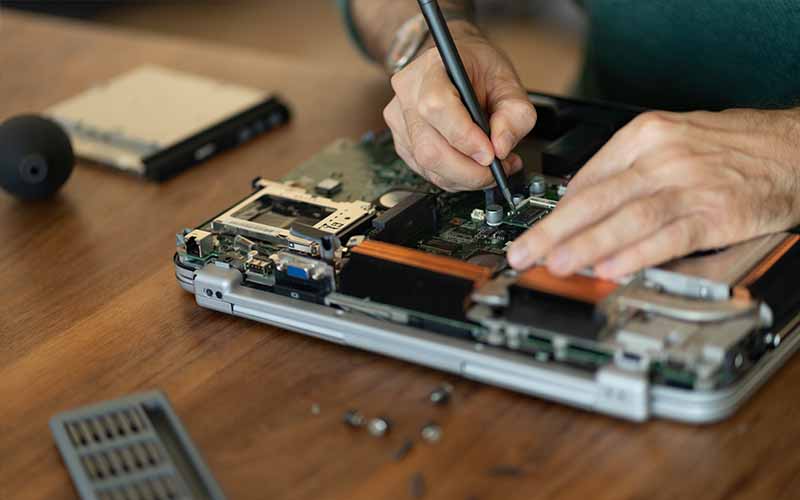
Conclusion: Don’t Wait for a Catastrophe
Your laptop is an investment, and like any valuable tool, it requires proper care and attention. Ignoring the warning signs discussed above can lead to minor issues escalating into major, costly repairs or even the need for a complete laptop replacement.
While it’s tempting to try DIY fixes for seemingly simple problems, complex internal issues, especially those involving hardware, are best left to qualified professionals. A reputable laptop repair technician possesses the diagnostic tools, specialized knowledge, and experience to accurately identify the root cause of the problem, perform necessary repairs, and ensure your laptop is running optimally and safely.
By recognizing these top seven signs and acting promptly, you can safeguard your data, extend the lifespan of your device, and avoid unnecessary headaches. Don’t wait until your laptop completely gives up the ghost; proactive repair can save you time, money, and a great deal of stress in the long run.






Leave a Reply