


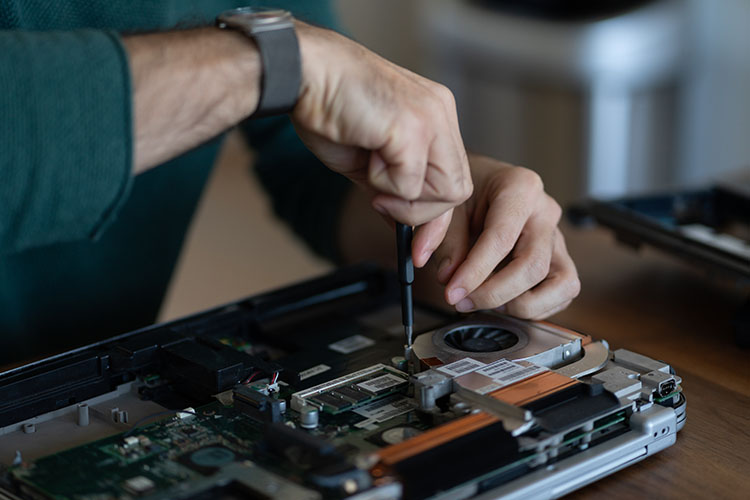
If your laptop feels sluggish, upgrading its hardware can breathe new life into it—but should you prioritize an SSD (Solid State Drive) or more RAM (Random Access Memory)? The answer depends on your laptop’s current specs and your usage needs. For most users, upgrading to an SSD provides the most noticeable speed boost, drastically improving boot times, file access, and overall responsiveness. However, if you frequently multitask with many apps or use memory-intensive programs (like video editing or gaming), adding more RAM may be the better choice. In this guide, we’ll break down the differences, benefits, and ideal scenarios for each upgrade to help you decide.
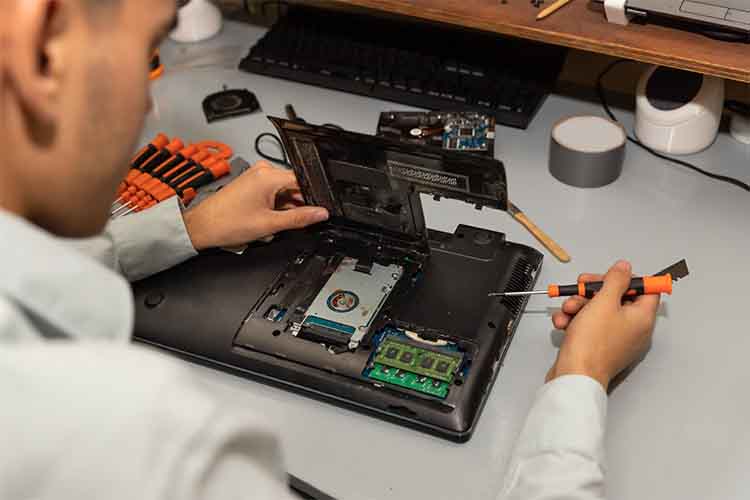
1. Understanding SSDs and RAM
Before deciding which upgrade is best, let’s clarify what each component does:
SSD (Solid State Drive)
-
Function: Stores your operating system, apps, and files permanently.
-
Impact on Performance:
-
Faster boot times (Windows/Linux/macOS loads in seconds).
-
Quicker file transfers and application launches.
-
More durable than traditional HDDs (no moving parts).
-
-
Best For: Users with slow, old hard drives (HDDs) who want an immediate speed boost.
RAM (Random Access Memory)
-
Function: Temporarily holds data for active applications.
-
Impact on Performance:
-
Allows smoother multitasking (more tabs, apps, and programs running at once).
-
Prevents slowdowns when using memory-heavy software (e.g., Photoshop, gaming, virtual machines).
-
-
Best For: Users who experience lag when running multiple programs or demanding applications.
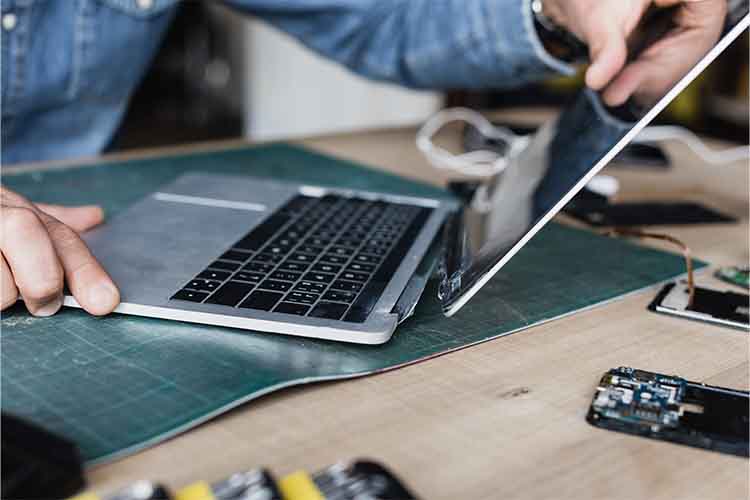
2. SSD vs. RAM: Which Should You Upgrade First?
When to Upgrade Your SSD:
✅ Your laptop still uses an HDD – Switching to an SSD is the single biggest performance upgrade you can make.
✅ Slow boot times and app loading – If your laptop takes minutes to start or programs lag when opening, an SSD will help.
✅ Limited storage space – SSDs are available in larger capacities than before (1TB+ options are affordable).
✅ General sluggishness – Even with enough RAM, a slow HDD can bottleneck performance.
When to Upgrade Your RAM:
✅ Frequent multitasking slowdowns – If your laptop freezes when switching between Chrome, Excel, and other apps, more RAM helps.
✅ Running memory-intensive software – Video editing (Premiere Pro), gaming, CAD, or virtual machines need 16GB+ RAM.
✅ Chrome or other browsers eat up memory – Modern browsers consume a lot of RAM; upgrading prevents slowdowns.
✅ Your laptop has 4GB or less RAM – 8GB is the minimum for smooth performance in 2024, and 16GB is ideal for power users.
3. Real-World Performance Comparison
| Scenario | SSD Upgrade Impact | RAM Upgrade Impact |
|---|---|---|
| Booting Windows | 2x–5x faster (10 sec vs. 1 min) | Minimal improvement |
| Opening Apps | Much faster (Photoshop loads in seconds) | Slightly faster if RAM was maxed out |
| Multitasking | No major change | Far smoother with more apps open |
| Gaming Performance | Faster load times, but no FPS boost | Higher FPS in RAM-limited games |
| File Transfers | Dramatically faster | No impact |
Key Takeaway:
-
An SSD improves storage speed (loading OS, apps, files).
-
More RAM improves multitasking and application performance (keeping more programs running smoothly).
4. Can You Upgrade Both? (And Should You?)
If your budget allows, upgrading both SSD and RAM is the ultimate performance boost. Here’s why:
-
SSD + 8GB+ RAM = A near-new laptop experience (unless the CPU is very old).
-
Some laptops allow easy upgrades, while others (like MacBooks and ultra-thins) have soldered RAM, making SSD the only option.
Check your laptop’s upgradeability first:
-
For RAM: Open Task Manager (Windows) or Activity Monitor (Mac) to see current usage and available slots.
-
For SSD: Check if your laptop supports NVMe or SATA SSDs (some ultrabooks have proprietary connectors).
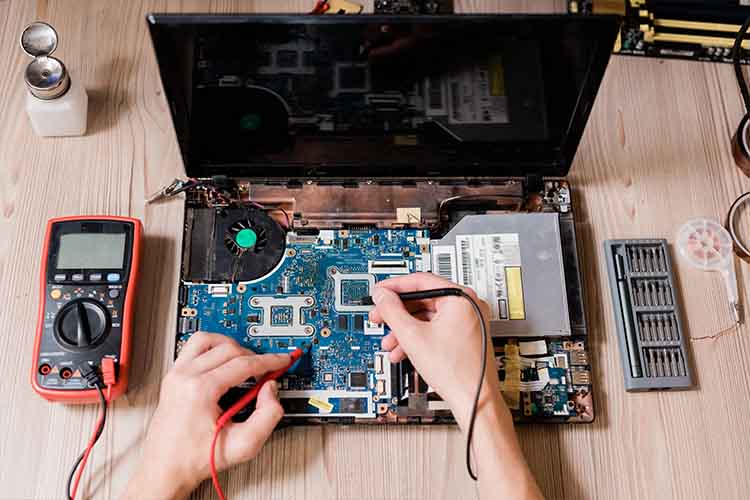
5. Cost & Installation Comparison
| Factor | SSD Upgrade | RAM Upgrade |
|---|---|---|
| Cost (2024) | $40–$150 (500GB–2TB) | $30–$100 (8GB–32GB) |
| Difficulty | Moderate (may require OS reinstall) | Easy (plug-and-play) |
| Time Required | 30–60 mins (data migration needed) | 5–10 mins |
Pro Tip:
-
If you upgrade your SSD, clone your old drive (using tools like Macrium Reflect or Clonezilla) instead of reinstalling Windows.
-
For RAM, match the existing stick’s specs (speed, DDR type) for best compatibility.
6. Final Verdict: SSD or RAM First?
Choose an SSD Upgrade If:
-
Your laptop still has an HDD.
-
You want faster boot times and app loading.
-
Your laptop feels generally slow but doesn’t struggle with multitasking.
Choose a RAM Upgrade If:
-
You frequently max out memory (check Task Manager).
-
You use demanding software (video editing, gaming, VMs).
-
Your laptop already has an SSD but still lags with multiple apps.
Best for Most Users: SSD First, Then RAM
For the biggest overall improvement, start with an SSD—especially if coming from an HDD. If you still experience slowdowns when multitasking, then add more RAM.
7. Need Help Upgrading Your Laptop?
If you’re unsure about compatibility or installation, consult a professional repair service. Many shops offer affordable SSD and RAM upgrades with warranties, ensuring a smooth performance boost without the hassle.
Ready to upgrade? Check your laptop’s manual or contact us for expert advice!
Final Thoughts
Upgrading your laptop doesn’t have to be expensive—a $50 SSD or RAM stick can make an old machine feel brand new. By understanding whether you need faster storage (SSD) or better multitasking (RAM), you can make the right choice for your needs.
Would you like recommendations for specific SSD or RAM models for your laptop? Let us know in the comments!






Leave a Reply